EzColorize
Colorize & Restore
Photo ColorizerHOT

Colorize and restore black & white photos

AI Color MatchNEW

Match photo colors to a reference image

Edit & Cleanup
Remove People from PhotoNEW

Brush over unwanted people and restore the background

Background Remover

Remove backgrounds and add colors or your own images

AI Open Eyes – Fix Closed Eyes in PhotosNEW

Open closed or half-closed eyes in a photo with AI. Choose the person in a group photo, compare the edit, and download your result.
Free
Image ConverterFREE

Batch convert JPG, PNG, and WebP images

Image ResizerFREE

Resize JPG, PNG, and WebP images locally

Keep On Steppin AI Dance

Create a synchronized five-character dance video.

Pricing

Remove People from Photos with AI

Remove unwanted people, tourists, and photobombers from photos with AI. Brush over people or describe who to erase and naturally restore the background.

Photo after AI people removal After
Original photo before people removal Before
Drag to compare the photo before and after people removal.

Upload your photo

Drag & drop or click to browse

Choose a photo up to 8 megapixels, then brush over people or describe who to remove.

JPG, PNG, WebP · up to 20 MB

4 credits per generation. Uploading is free.

Secure Brush selection

Real before and after examples

See real edits made with Brush selection and Text prompt. Drag each divider to compare the original photo with its AI result.

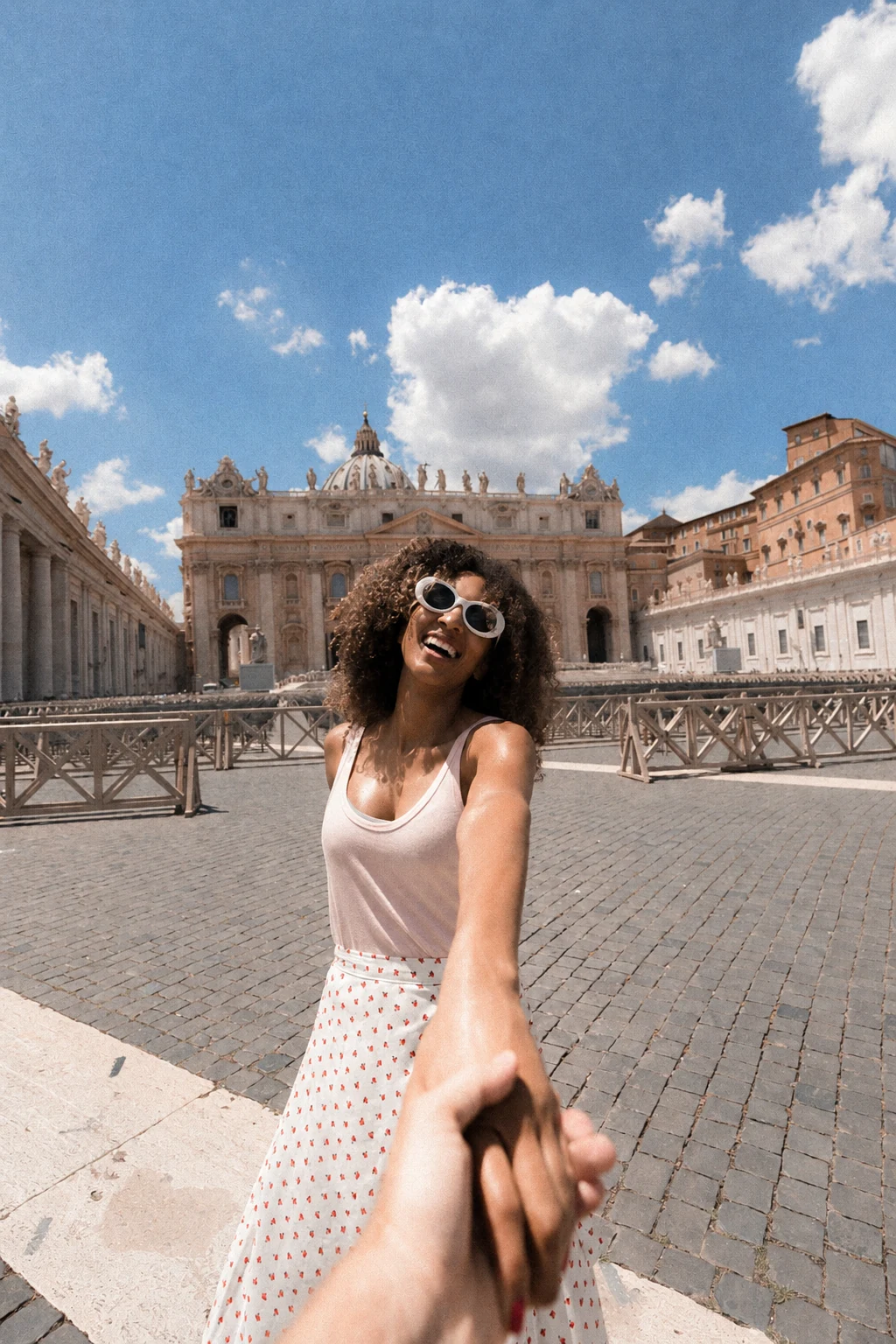
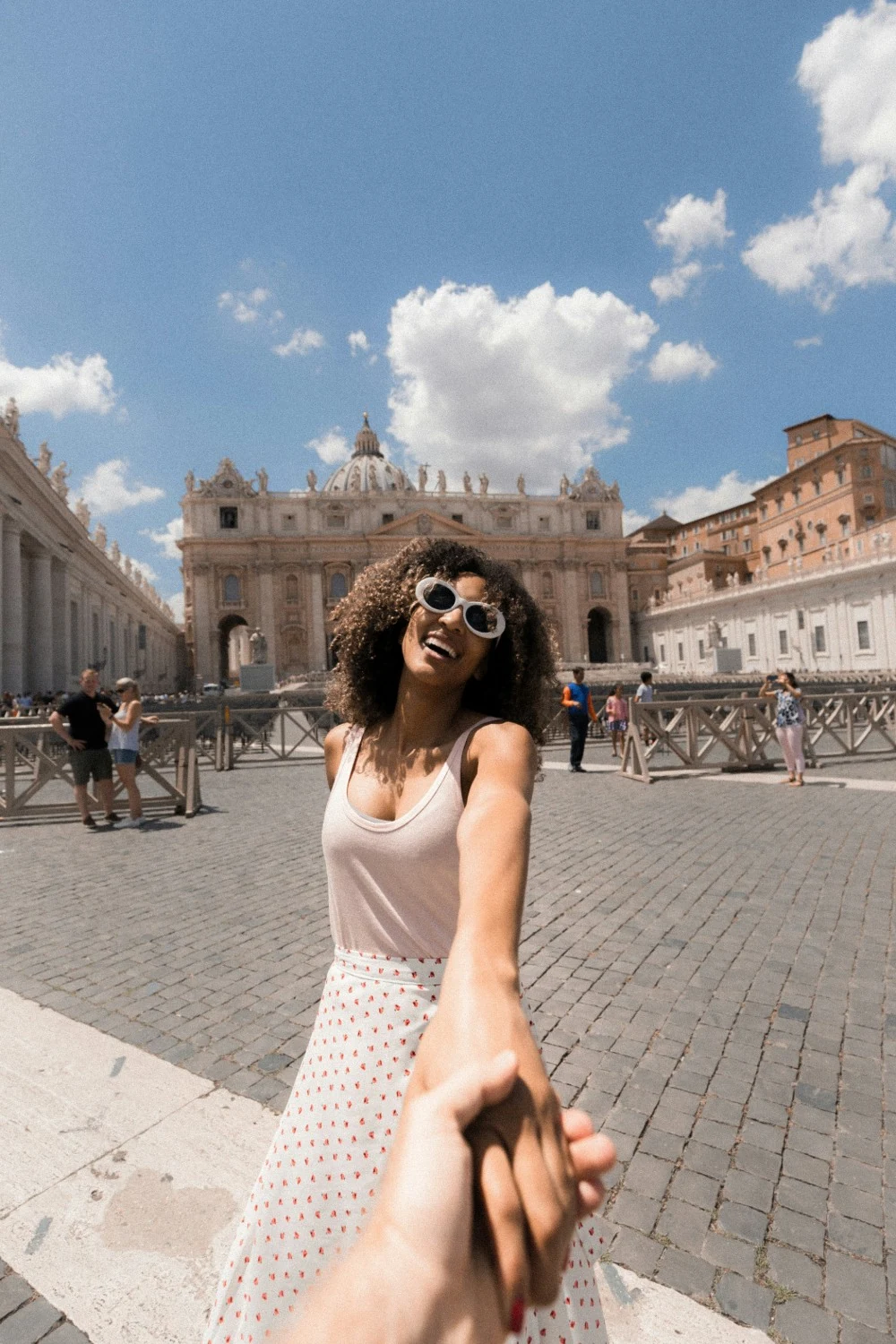
AI-edited travel selfie with the background tourists removed After
Travel selfie with tourists in the square behind the main subject Before
Text prompt

Remove tourists from a travel selfie

A text prompt removes background visitors so the travel portrait becomes the focus.
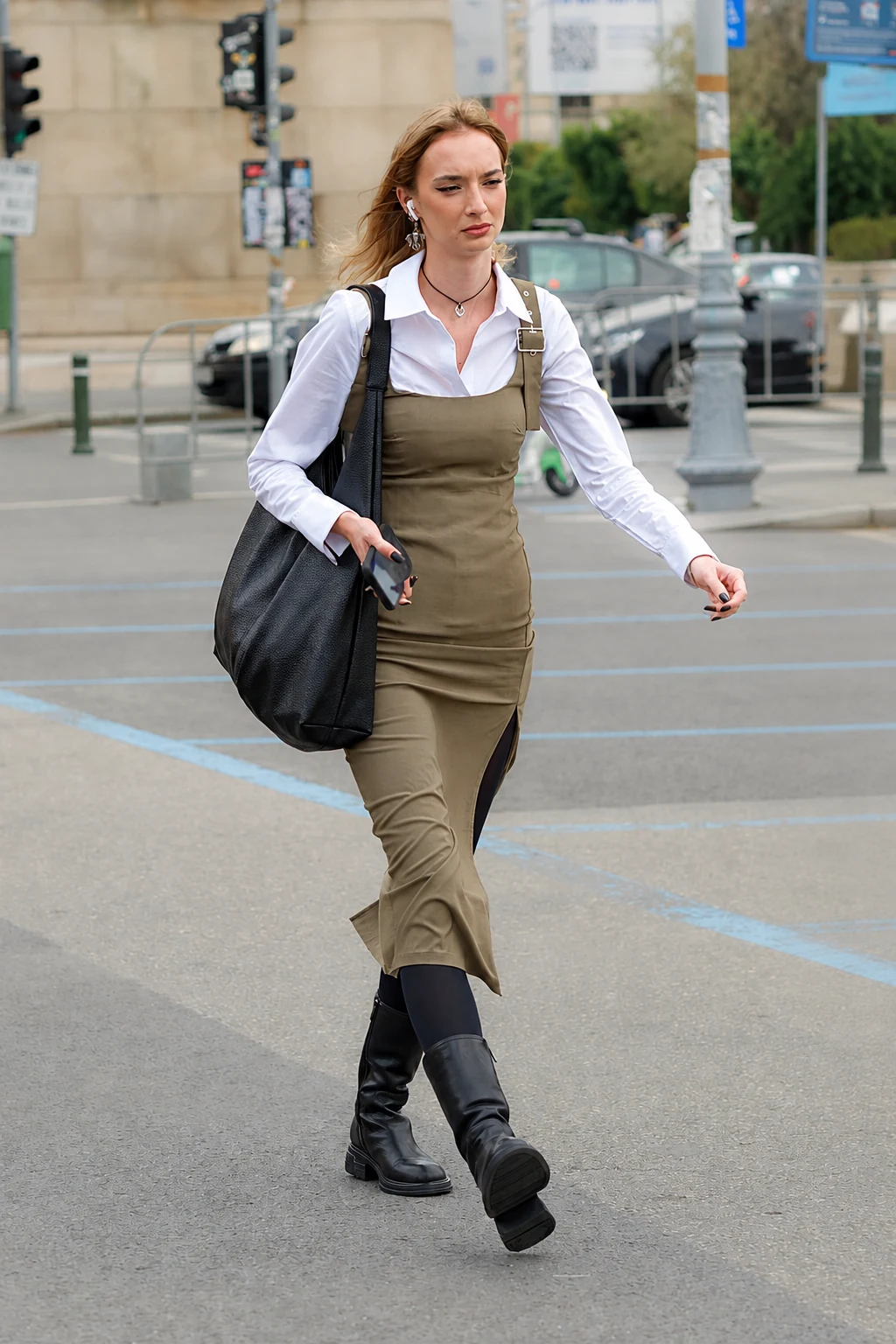
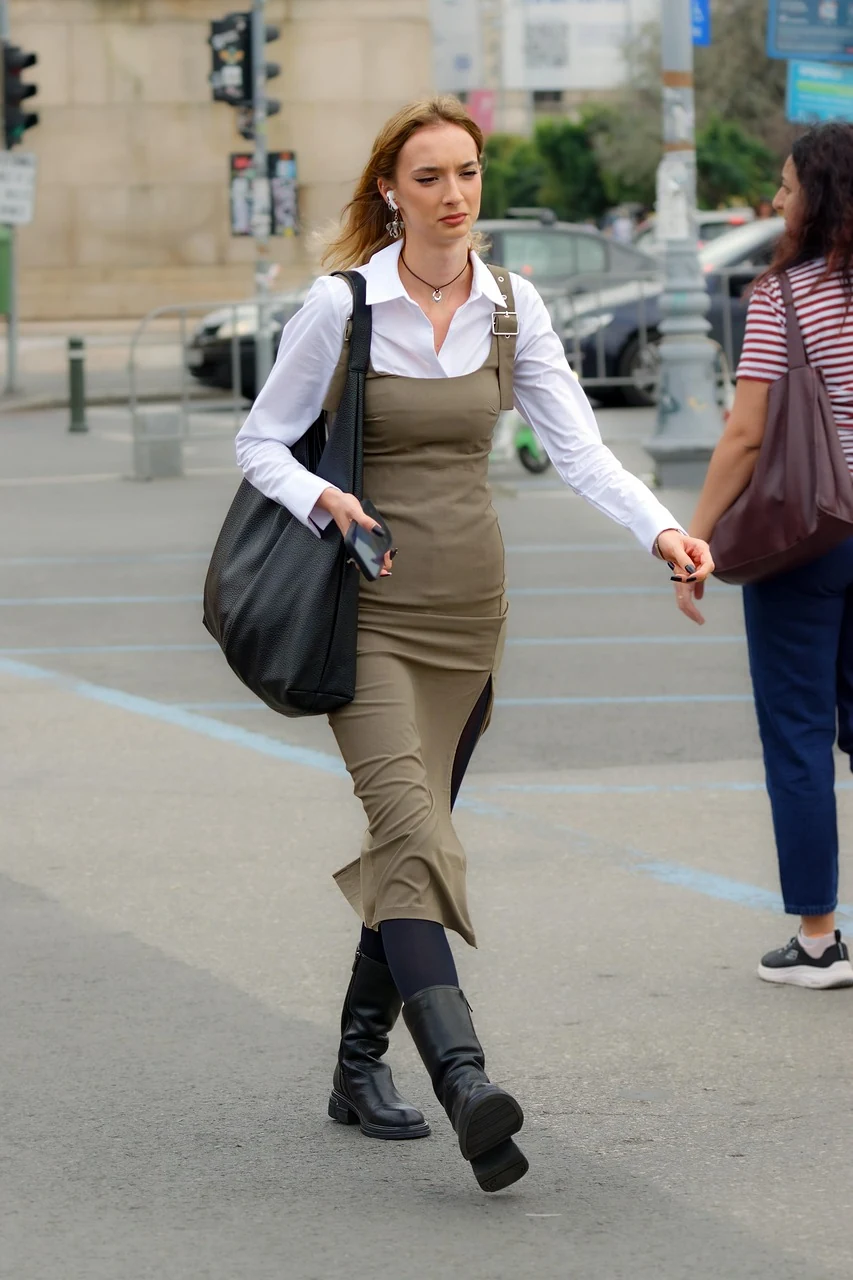
AI-edited street portrait with the selected passerby removed After
Street portrait with a passerby on the right of the main subject Before
Brush selection

Brush away a passing stranger

Select the passerby on the right and generate a cleaner street portrait.
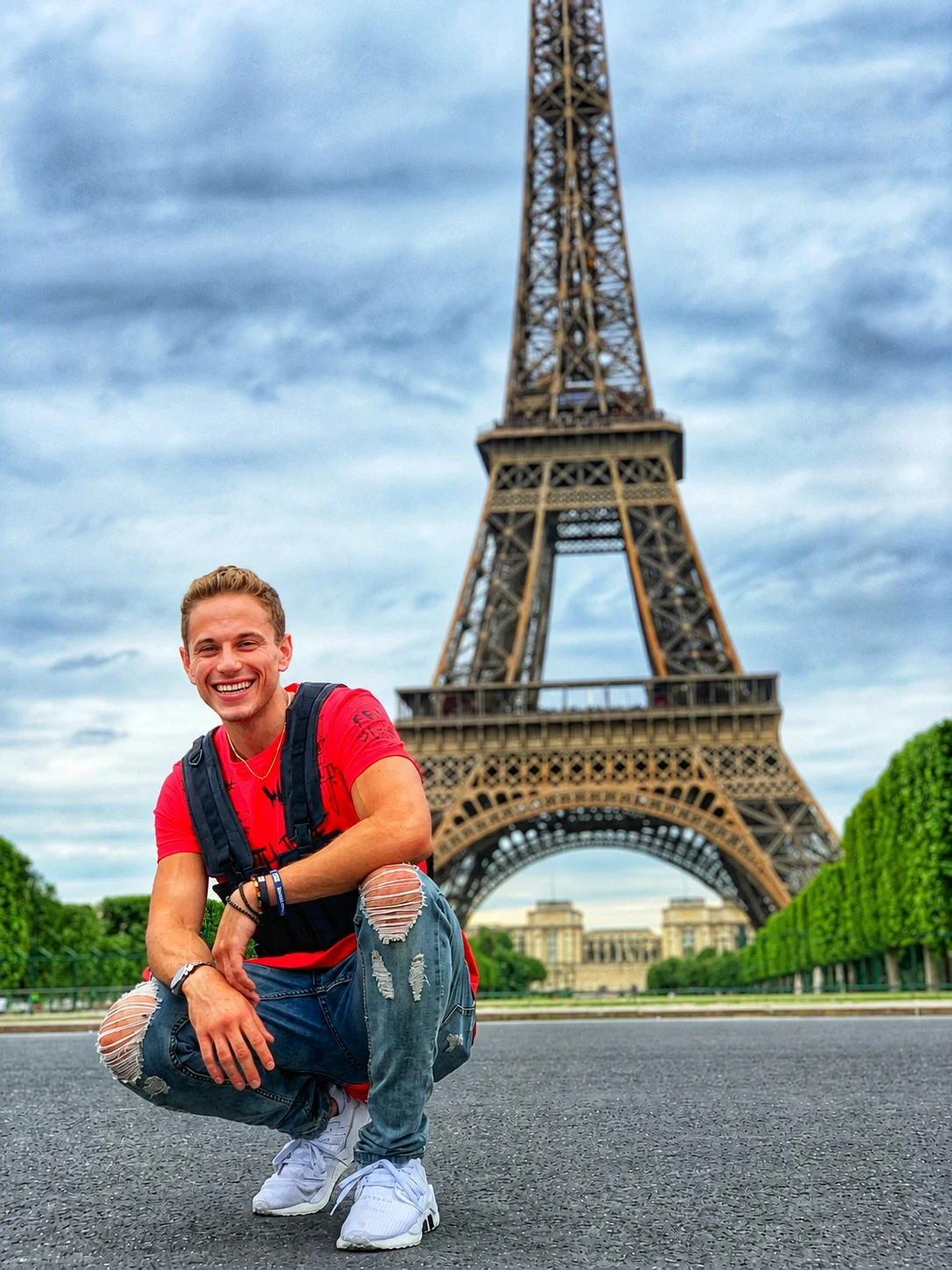
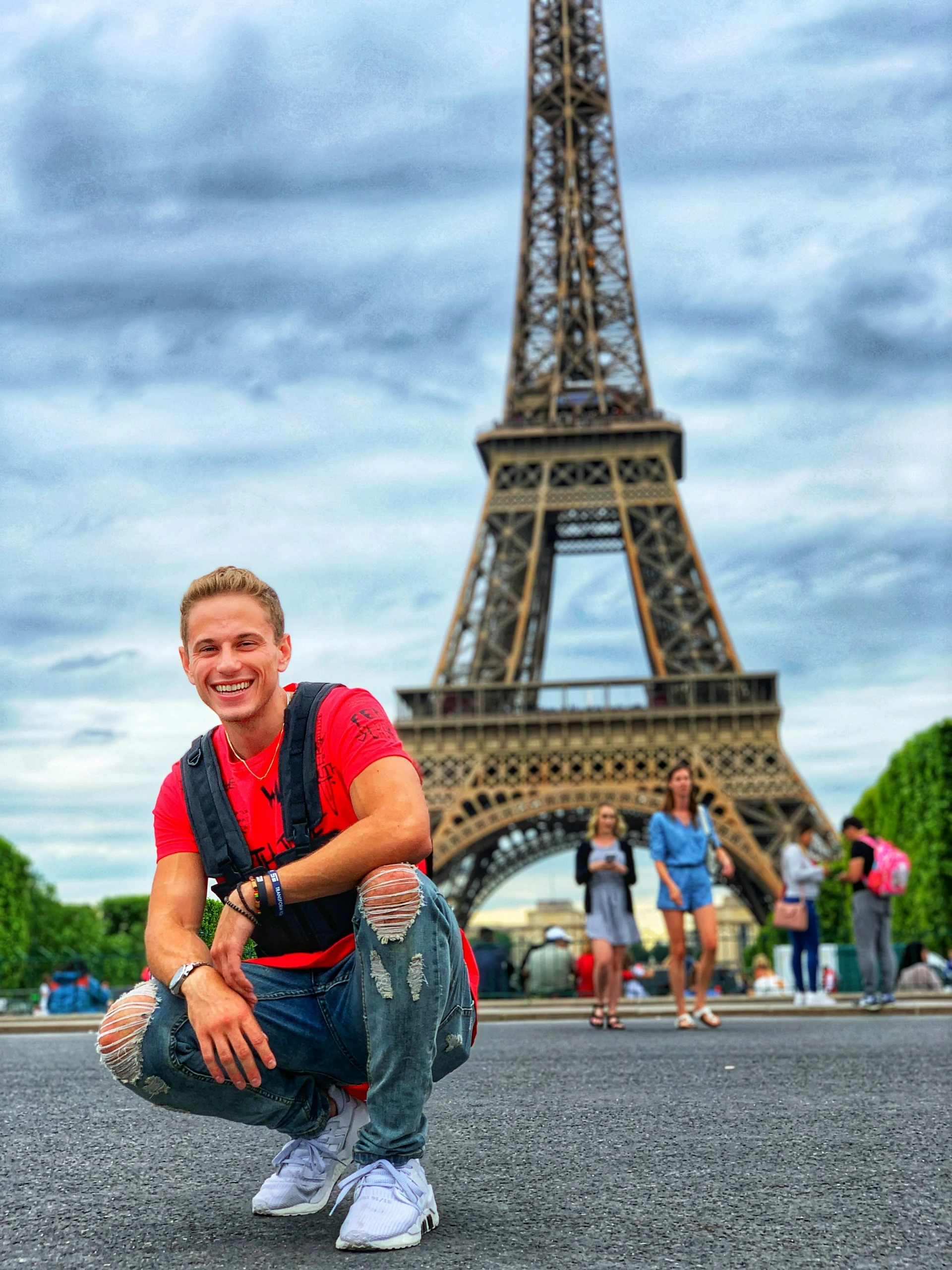
AI-edited Eiffel Tower portrait with background tourists removed After
Man posing in front of the Eiffel Tower with tourists in the background Before
Text prompt

Clear a busy landmark background

Describe the background tourists to remove from an Eiffel Tower travel photo.

Actual AI-generated edits. Results vary with the photo and instructions.

How to remove people from a photo

Upload your image

Choose a JPG, PNG or WebP photo. Your original stays separate from your selection.

Brush or describe

Paint over unwanted people, or switch to Prompt and describe who to remove and who to keep.

Generate, compare and download

Generate an AI edit, inspect the before/after view, then download or refine your selection.

Precise selection, simple controls

Choose who stays

Manual brush selection works without automatic person detection.

Correct every stroke

Use an eraser, adjustable brush, undo, redo and clear selection.

Zoom into the details

Zoom and pan while your selection remains aligned with the original photo.

Popular ways to use an AI person remover

Travel photos

Remove tourists from photos of landmarks, streets and scenic viewpoints.

Portraits and celebrations

Select background strangers while leaving your main subject unselected.

Landscapes and architecture

Clear distractions from beaches, hiking views and building photographs.

Tips for better results

Cover the whole person

Include clothing, bags and small gaps. Avoid brushing over anyone you want to preserve.

Think about the background

Complex overlaps and hidden architectural details may require a refined selection and another generation.

Review the full image

AI invents what was hidden and can change details outside the mask. Check faces, text, shadows and reflections before downloading.

Frequently asked questions

How do I remove one person from a photo?

Upload the photo, then brush over that person or describe them in Prompt mode. Specify who to keep before generating.

Can I remove multiple unwanted people?

Yes. Paint separate selections over each unwanted person, or describe multiple people in Prompt mode.

Does this automatically detect people?

No automatic detection overlay is provided. Choose people manually with Brush, or describe them in Prompt mode for the AI to interpret.

Will the rest of my photo remain exactly unchanged?

Your brush mask or written instructions guide the model, but exact pixel preservation is not guaranteed. Check the entire before/after result, especially people close to the selection.

How much does removal cost?

Each generation uses 4 credits. Failed jobs release reserved credits. Daily credits are used first, then purchased credits. Generating another result uses another 4 credits.

Can I edit my selection after generating?

Yes. Edit Selection restores your brush strokes, and Edit Prompt restores your description. Try Again generates another edit with your current instructions.

Related AI tools

AI Color MatchAI Photo ColorizerImage Resizer
EzColorize

Bring old memories back to life with EzColorize. Colorize black-and-white photos, restore faded images, and enhance details with AI—all online, with no download required. Try it free with daily credits.

Contact Us[email protected]

Tools

  • Photo Colorizer
  • Image Converter
  • Image Resizer

Resources

  • Blog
  • Pricing

Image models

  • GPT Image 2.5
  • GPT Image 2
  • Nano Banana 2
  • Nano Banana Pro
  • Nano Banana
  • Seedream 5.0

Video models

  • Seedance 2.5
  • Seedance 2.0
  • Kling 4.0
  • Kling 3.0

© 2026 ezcolorize.com. All rights reserved.

Privacy PolicyTerms of ServiceRefund Policy
Featured on Twelve ToolsEzColorize - Featured on Startup FameFeatured on ToolPilotVerified on Dang.ai