
Natural MatchSubtle
Wedding portrait in warm amber tones
A daylight wedding portrait takes on the reference’s warm amber highlights and deep green shadows with Natural Match at Subtle strength.
Match the colors, lighting, and visual mood of one photo to another using AI.
A real output preview. Add your target and reference to create your own match.

Output quality
2K · AutoThe model selects the output dimensions. The exact size is shown with your result.
Each generation costs 12 credits
Explore how a target photo can take on a reference image’s colors and mood, with natural or creative AI editing.
A daylight wedding portrait takes on the reference’s warm amber highlights and deep green shadows with Natural Match at Subtle strength.
A swan and its cygnets on a quiet lake take on turquoise water and deeper cool shadows inspired by the river reference, using Natural Match at Subtle strength.
A neutral watch product photo takes on violet tones and blue-red reflections inspired by a lens-filter reference, using Natural Match at Subtle strength.
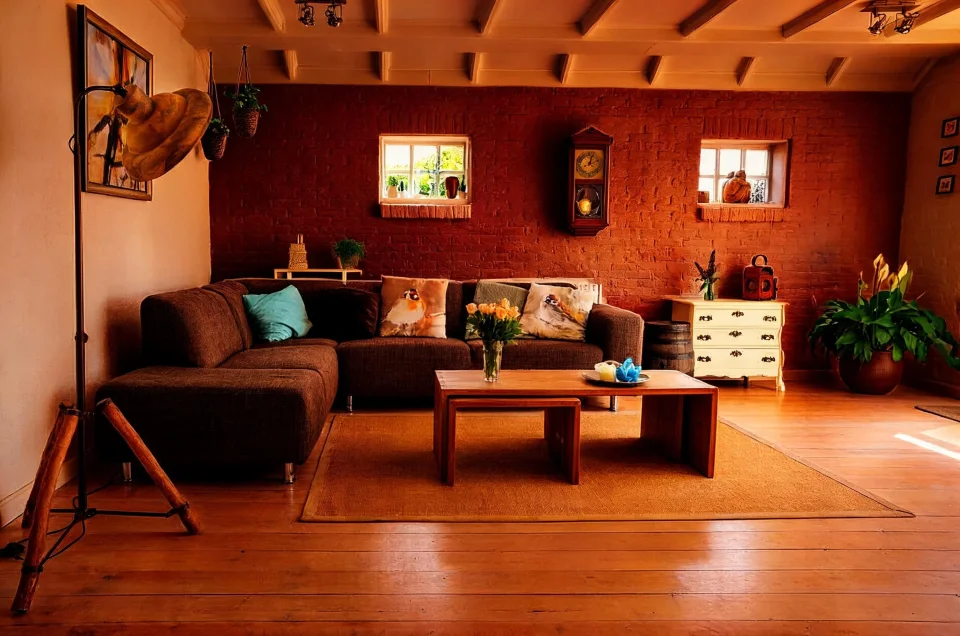
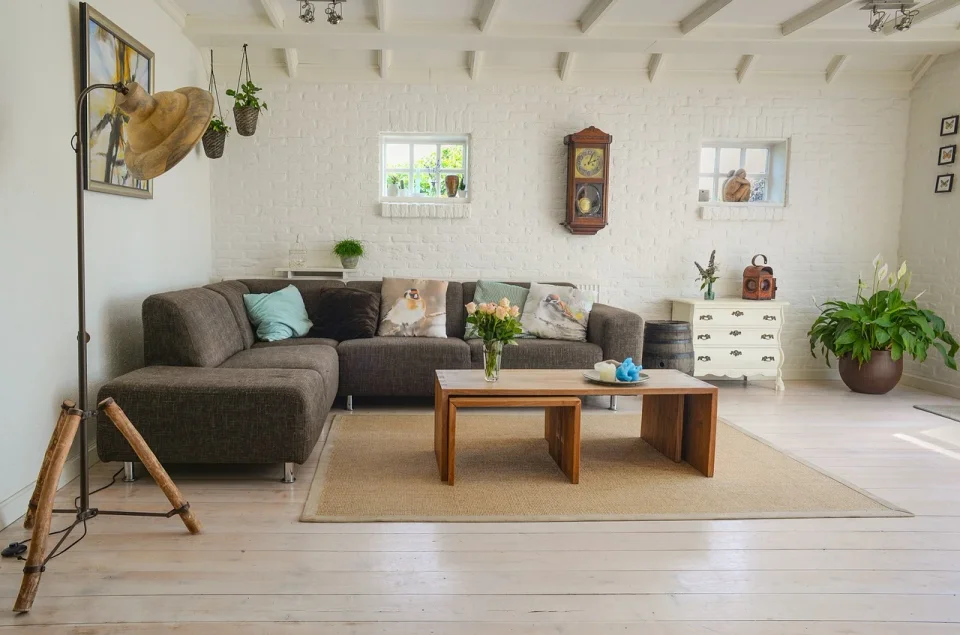
A bright living room takes on warm amber light and rich brick-red tones inspired by a candlelit reference, using Natural Match at Subtle strength.
Keep the scene you love. Borrow a new color direction.
Add your target photo: the subject and scene you want to keep. Use a still JPG, PNG, or WebP image.
Choose the colors and mood you want to borrow. Select Natural or Creative Match and a strength.
Sign in, check the credit cost, then select Match Colors. Review the result and download PNG, JPG, or WebP.
Match the reference colors while aiming to preserve the original photo’s appearance and details.
Best for portraits, products, and realistic photography.
Create expressive color grading and cinematic mood inspired by the reference image.
Best for artistic photography and social content.
Use a real photo to guide palette, warmth, contrast, and visual mood.
Choose a restrained Natural Match or a more expressive Creative Match.
Subtle, Balanced, and Strong describe the intended intensity of the edit, not fixed percentages.
Instructions prioritize the target’s subjects, composition, text, and detail. Always review the output.
Generate with the model’s automatic 2K-class setting and see the actual output dimensions.
Review your result online and export PNG, JPG, or WebP with the shared format picker.
Explore a cohesive color mood across a portrait series.
Explore a consistent campaign look while checking important product colors.
Bring a reference’s warmth, cool tones, or cinematic atmosphere to your scene.
Explore tonal harmony across architectural and interior photography.
Explore a consistent palette for a post series or a visual campaign.
Try expressive highlight colors, shadow tones, and atmosphere with Creative Match.
A filter applies a preset look. EzColorize uses AI image editing rather than histogram matching or traditional color transfer algorithms. A reference photo is used to guide the palette, warmth, contrast, and mood of your target. Results can vary: review faces, product colors, fine detail, and readable text before using an edited image.
AI color matching edits a target photo using another image as a palette and mood reference. It aims to adapt colors and tones while keeping the target’s essential scene content.
Upload the photo you want to edit as Target Image, add a Color Reference, choose a mode and strength, then sign in and review the cost notice before selecting Match Colors. The result depicts the target, not the reference.
Natural Match aims for realistic grading and conservative lighting changes. Creative Match allows stronger colors and atmosphere while aiming to retain recognizable subjects and composition.
It can. Preservation is an instruction, not a guarantee. Inspect faces, objects, product colors, readable text, logos, and fine detail before using an edited image.
Yes. The reference is intended to guide color temperature, palette, contrast, and mood. It should not replace the target scene or copy the reference’s subjects. Use photos you have permission to upload.
Upload still JPG, PNG, or WebP files up to 20 MB and 40 megapixels, with no side longer than 16,000 pixels. Inputs are validated and normalized for processing. Downloads support PNG, JPG, and WebP.
Each generation uses 12 purchased credits and requires sign-in. Credits are reserved while processing, charged on success, and released if the edit fails. Daily free credits apply to Photo Colorizer V1. Trying an example does not generate an image or use credits.
Yes. The current model uses its automatic 2K-class output setting; exact dimensions depend on the returned image and are shown in the result. The download picker exports at the result’s dimensions. PNG retains the stored result, while JPG and WebP may use lossy encoding.