
A family photo carries more than a face. Handwriting on the back, the order of an album, a photographer's stamp, and a relative's memory can explain what the picture cannot. Restoring or colorizing a digital copy should add a way to enjoy that history without replacing the evidence you already have.
This guide separates preparation, AI processing, and preservation. EzColorize can run colorization and, depending on the selected model configuration, restoration or enhancement. These are changes to a digital image; they do not repair the physical print or verify historical details.
Prepare a useful digital source
Capture the picture and its context
Scan the front and, when safe, the back of a loose photograph. If it belongs to an album, photograph the page and nearby captions before making individual copies. Keep names, approximate dates, locations, and uncertain identifications in a separate note.
Use a scanner surface that accommodates the whole photograph. For a camera copy, keep the camera parallel to the print and use even lighting without glare. Check small faces at full size before putting the print away. A sharp capture makes a bigger difference than repeatedly enlarging a blurry one.
Do not force a brittle photograph flat, peel it from a stuck album page, or attempt to clean it with household chemicals. For fragile or valuable items, seek a photograph conservator. The National Archives' family-photo guidance explains why careful handling matters.
Keep a master and make a working copy
Save an untouched master scan in your archive. Create a separate JPG, PNG, or WebP copy for EzColorize. If the master uses another format, export a compatible copy with suitable software; the site's converter does not currently accept every archival format.
Check the selected model's input limits. Use the image resizer if the working copy needs smaller dimensions. Reducing that copy for processing should never mean deleting your larger master.
Restoration and colorization solve different problems
Restoration aims to improve issues such as damage, noise, or degraded facial detail. AI restoration can also invent textures or reshape features when evidence is weak. A cleaner image is not automatically a more faithful one.
Colorization assigns inferred colors to a grayscale image. It may make a scene feel more immediate without proving the original colors of clothing, eyes, flowers, or painted surfaces.
EzColorize's available models can combine stages. Read the current model description rather than assuming there is a separate scratch-removal switch or a manual editor. The homepage does not provide local repair brushes or user-defined stage ordering. Deep tears, missing faces, and damaged text may still need careful work in a separate editor.
The actual AI workflow
1. Choose the model, then upload
Go to the AI photo colorizer, compare the available models, and check the credit cost. Choose one suitable for your goal, then upload a supported working copy. The homepage handles one photo at a time.
For a preservation project, begin with a representative image rather than your entire collection. A test on one copy helps you decide whether the model's treatment of faces and texture suits the album.
2. Allow automatic processing
The selected model runs after the upload is accepted. Follow the progress display. Whether restoration, colorization, or other enhancements occur depends on the saved model configuration, not on a universal repair sequence promised by a guide.
There is no requirement to run every possible enhancement. A well-preserved portrait may only need a color interpretation, while a severely damaged photograph may need specialist attention before automated processing is useful.
3. Review and save a separate result
Compare the result with the source before downloading JPG, PNG, or WebP. Inspect faces, hands, jewelry, lettering, and edges. If the image looks pleasant but changes a person's expression, preserve the source as the reference.
Free daily credits can cover eligible attempts, subject to the current allowance and model cost. Further attempts or some models may require additional credits or plan access. Save the result to your own archive rather than relying on task history as permanent storage.
An example to review as an archivist
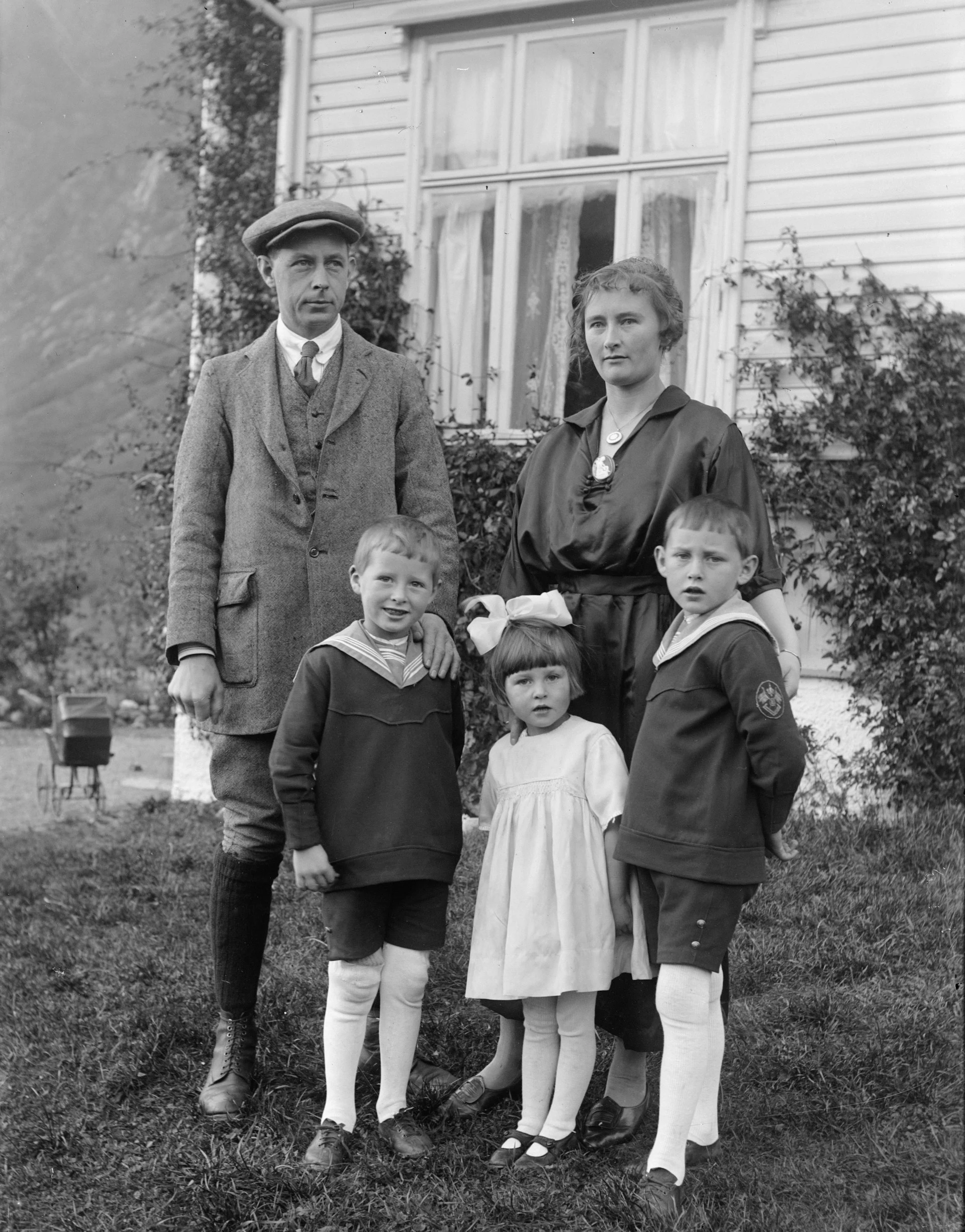
This pair comes from the existing homepage demonstration; the result is associated with a completed EzColorize job. It is an example of a generated interpretation, not a documented account of the subjects' original clothing colors. The homepage identifies the source as a Chris Curry / Unsplash image.
The source preserves tonal relationships, visible clothing shapes, and the arrangement of the group. Those are useful references when judging any edited version.
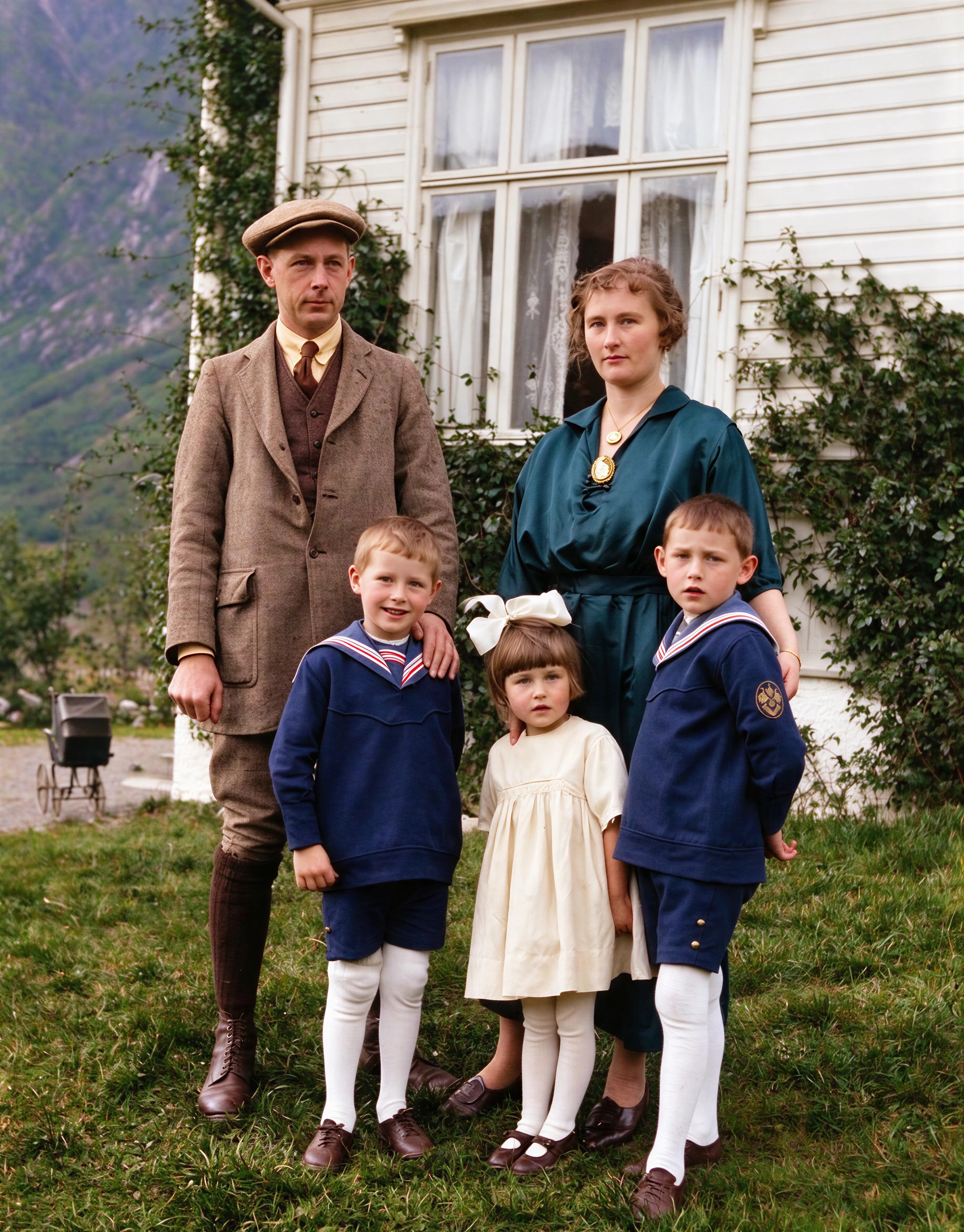
The added colors help distinguish garments. However, compare facial contours and fabric texture too. Keep both versions, and label the generated version so a future family member does not mistake inferred colors for a surviving color photograph.
Build an archive that outlasts the editing session
Use filenames that explain the version
A simple scheme might be family-group-circa-1960-master.tif, family-group-working.png, and family-group-ai-colorized.jpg. Only include a date or location when you have a reason for it; mark estimates as estimates. Keep the master even if it is not a format the web tool accepts.
Record what changed
In a sidecar text file, note the source of the photograph, who identified the people, the processing date, the selected model name, and that colors or details were AI-generated. Save any reliable color references separately. Do not assume downloaded files retain every camera, scanner, or provenance metadata field.
Store independent copies
Keep backups in separate places and occasionally check that they still open. The National Archives' digitization guide recommends keeping originals and maintaining multiple copies across different media, including an off-site copy. Digital editing does not remove the need to protect the physical photograph.
Share a smaller derivative when relatives only need a messaging-app copy. Keep a higher-quality file for future use. If you need to change format, the image converter handles JPG, PNG, and WebP; conversion does not restore information already lost.
Know when to stop
AI cannot reliably reconstruct an eye hidden by a tear, recover unreadable handwriting as verified text, or prove someone's complexion from a grayscale print. Repeated enhancement can move farther from the source. When identity or documentary accuracy matters, keep uncertain areas visible or consult a skilled restorer rather than accepting an invented replacement.
Frequently asked questions
Should I restore a photo before colorizing it?
Removing severe distractions from a working copy can help, but there is no universal order. EzColorize follows the selected model's configured stages. If the source needs manual repair, do that separately and compare the repaired copy with the master before using AI.
Can AI repair every scratch and missing section?
No. Some configured models include restoration, but results vary with the damage and source information. Missing detail can be guessed incorrectly. This service does not physically repair prints.
Should I keep a colorized version as the archival master?
Keep it as an additional interpretation. The unedited scan and physical original remain the references for the photograph as it survives today.
Can I upload sensitive family photographs?
Only upload images you have the right to use and are comfortable sending for remote AI processing. Consider the privacy of living relatives and read the privacy policy. The AI tool is not an offline, browser-only editor.
Start with one photograph
Try a working copy in EzColorize, review it with someone who knows the people, and save the source and result together. For interface details, follow the three-step colorization tutorial. For a closer look at uncertainty, read how AI infers photo colors.