
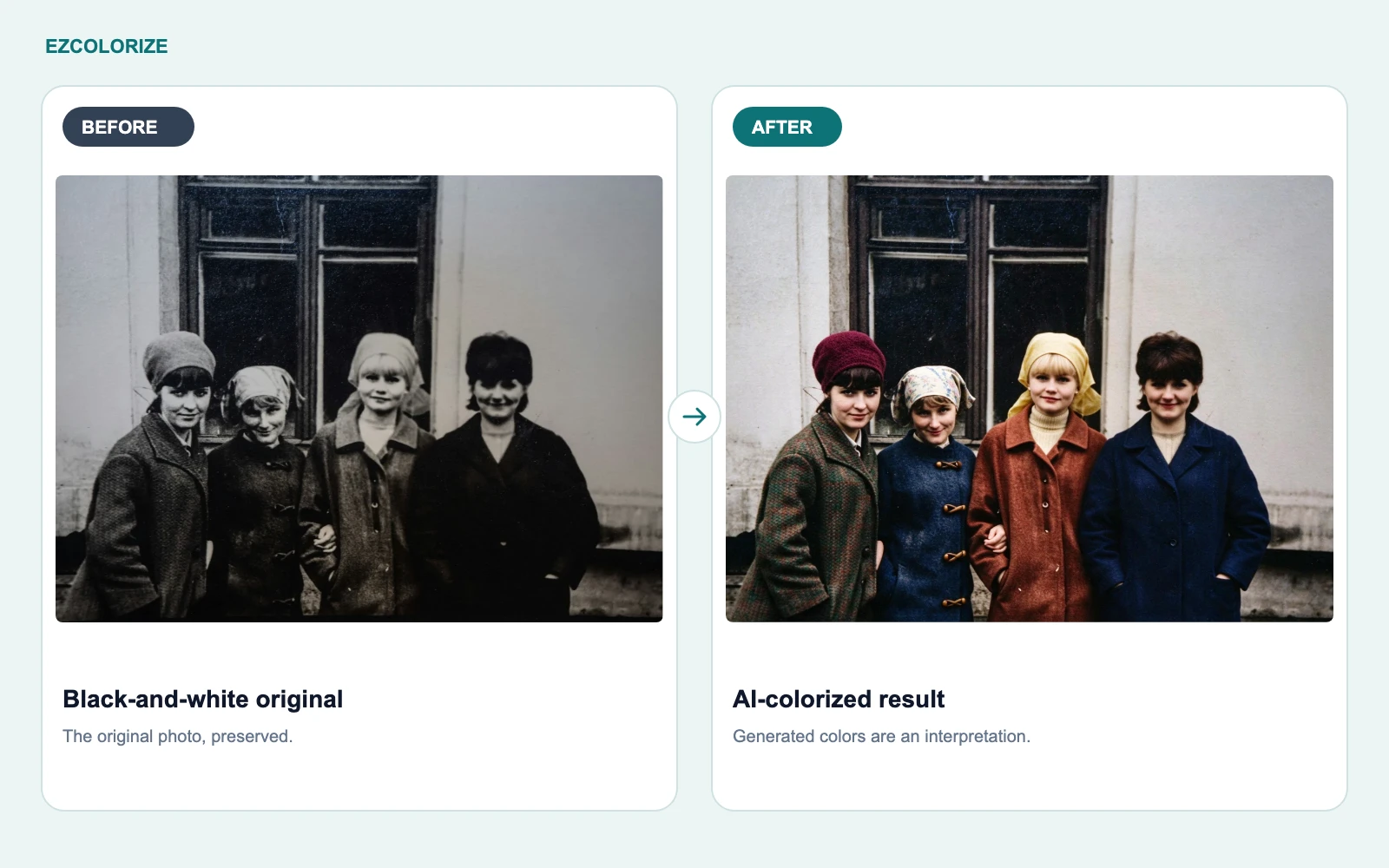
An old black-and-white photo can feel familiar and distant at the same time. Adding color can make clothing, faces, and surroundings easier to notice, even when the new colors are an interpretation rather than a historical record.
You can try this with the EzColorize AI photo colorizer. You do not need to install an editor or paint individual areas. Choose a model, upload one photo, and review the generated result. Free use depends on the daily credits available to you and the cost of the selected model; it is not unlimited.
Before you begin
Use a digital copy, not your only original. EzColorize accepts JPG, PNG, and WebP images. If your scan is in another format, make a supported working copy with the image converter, which currently accepts those same three formats; use another suitable converter for TIFF or HEIC.
Check the model selector and your available credits before uploading. File-size and pixel limits depend on the current account and model settings. A small file in megabytes can still contain too many pixels. If the tool asks for smaller dimensions, use the image resizer on a copy and keep your full-resolution scan separately.
How to colorize a photo in three steps
Step 1: Choose a model and upload your photo
Open EzColorize and read the available model descriptions. Select a model intended for colorization, then use Upload to choose a JPG, PNG, or WebP file from your device. The current homepage workflow processes one photo at a time.
Start with a clear scan or a straight, well-lit photograph of the print. Include the whole picture, avoid reflected light, and check that faces are in focus. Changing models can change both the available enhancements and the credit cost.
Step 2: Let the selected model process the image
Processing starts automatically after the upload is accepted. Follow the progress panel while the service runs the selected model. You do not need to press a separate Colorize button after uploading.
Keep the page open while you wait. Processing time varies with the model, image, and service availability. Some model configurations also include restoration or enhancement; the tool does not give every photo an identical sequence of operations.
Step 3: Compare the result and download a copy
Use the before-and-after comparison to review the result. Look at faces first, then inspect skin edges, hair, clothing, and small background details. Attractive colors are not necessarily correct colors.
Click Download and choose JPG, PNG, or WebP. JPG is convenient for sharing photographs; PNG avoids another lossy export step but can produce a larger file; WebP is useful when the receiving app supports it. A PNG export cannot undo changes already introduced by AI or earlier compression.
Save the download under a new name, such as family-group-colorized.jpg, so it cannot replace your original scan.
A real homepage before-and-after example
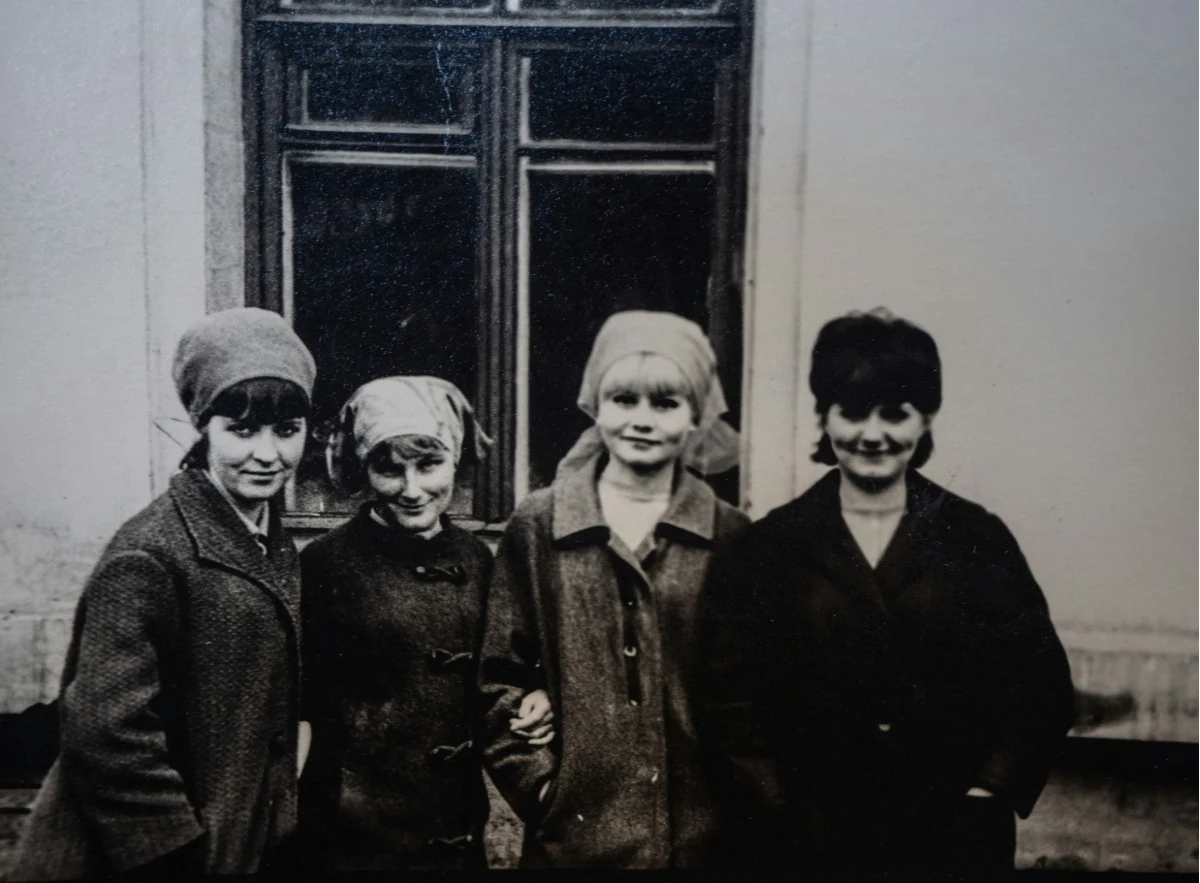
The following pair is already displayed on EzColorize's homepage. The generated result corresponds to a completed product job. It illustrates one result, not a guarantee of what another image or the current model settings will produce. The original image is identified on the site as a Chris Curry / Unsplash photo.
Before: the black-and-white source
After: the generated color version
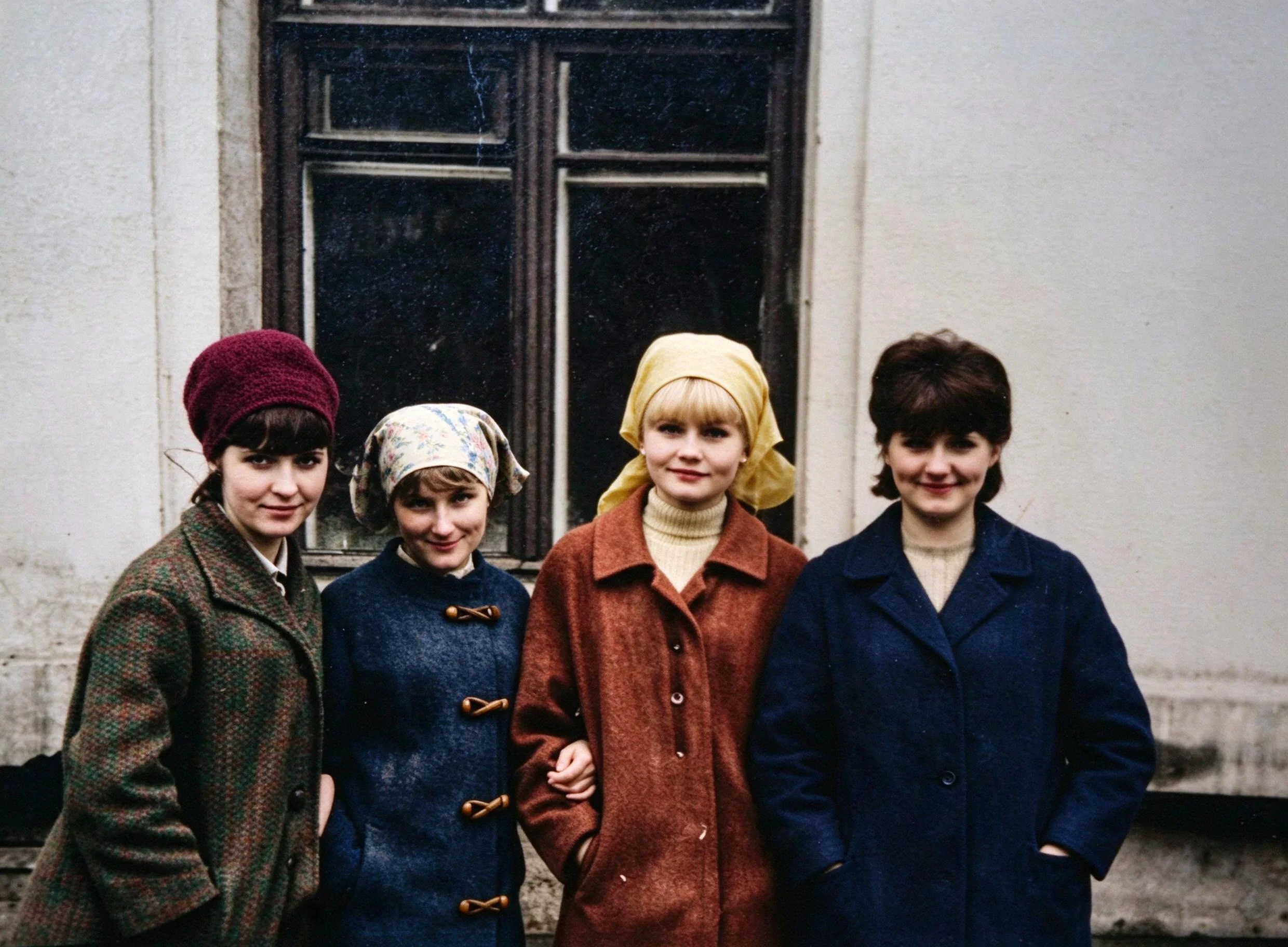
Notice the different coat colors and head coverings. Those colors make it easier to separate the people visually, but the grayscale source alone does not establish that the garments really had those colors. Also check whether facial detail and texture changed, rather than judging only saturation.
Practical tips for a more useful result
- Work from the clearest source you have. A scan is usually more informative than a screenshot of a scan.
- Avoid repeatedly saving your working copy as JPG before uploading. Repeated lossy encoding can add artifacts.
- Keep natural shadows. Aggressively brightening a scan can erase useful tonal detail.
- Review at a comfortable viewing size and close up. A result that looks convincing as a thumbnail can have uneven color along edges.
- If a relative remembers a dress or uniform color, record that information separately. The current homepage does not offer a local color-painting control to enforce it.
Common problems and what to do
The upload is rejected
Confirm that the file is a supported image, then check its size and dimensions against the displayed limits. Rename-only conversion does not change the actual format. For an oversized supported photo, resize a working copy; do not discard the original.
The colors look unexpected
AI infers likely colors from visual patterns. It cannot look up the actual color of an undocumented coat. Try another available model if appropriate, or keep the black-and-white version when accuracy matters more than a color interpretation. Another attempt may consume credits.
The image looks soft or faces look different
Compare each face with the source. A cleaner-looking result may include invented detail. Do not treat smoothing or sharpening as proof that lost information has been recovered. For badly damaged faces, careful manual work may be a better option.
Processing fails
Read the on-screen error before retrying. A temporary service error, insufficient credits, and an unsupported image need different responses. The upload interface supports trying again after a failed task; do not repeatedly submit the same image while a task is still running.
Frequently asked questions
Is it really free to colorize a photo?
You can try the service using the free daily credits available to you. Each model has a displayed credit cost, and some options may require an eligible account or plan. Check the current allowance instead of assuming a fixed number of free photos.
Do I need photo-editing experience?
No painting or layer editing is required for the automatic homepage workflow. You still need to judge the result, especially faces and colors that matter to your family.
Can I process a whole album at once?
The homepage currently accepts one photo at a time. Repeat the workflow for additional photos. Batch conversion and resizing in the separate utility tools do not imply batch AI colorization.
Are my photos processed only on my device?
No. AI colorization uploads the photo for server-side processing and uses an external AI provider. Review the privacy policy before uploading sensitive images.
Choose your next step
Ready to try a photo? Open the AI photo colorizer, choose a suitable model, and start with a copy you can compare with the original. For an album project, read how to restore and colorize old family photos. To understand why AI guesses colors, see how AI photo colorization works.